Nucleo N657X0-Q
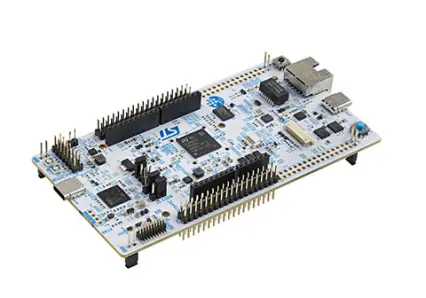
The mboot bootloader must first be built and deployed to this board. Once its USB DFU port can be seen, the firmware below can be programmed as usual with any DFU loader.
Flashing mboot with ST-LINK
Make sure that CN9 is in position 1-2 to select STLK as the 5V power source, that JP1 is in position 1-2 (lower position) and JP2 is in position 2-3 (upper position). Then plug in a USB cable into the ST-LINK port CN10. This will allow mboot firmware to be programmed to the external SPI flash via ST's tools, eg:
make -C ports/stm32/mboot BOARD=NUCLEO_N657X0 deploy-trusted
Once mboot is installed, change CN9 to position 3-4 to select USB as the 5V power source, change JP2 back to position 1-2 (lower position) and change the USB cable to CN8. mboot will present a USB DFU device on this USB port, and the red LED2 should be blinking at 1Hz to indicate that mboot is active. If it's not active then hold the USER button and press NRST, and wait until all three LEDs are on, then release USER. Now mboot will be active.
Flashing mboot without ST-LINK
mboot can also be installed using only the STM32N6's own USB port, CN8, using the DFU mode of the chip's built-in bootloader (the boot ROM). Do not plug anything into the ST-LINK port CN10. Make sure that CN9 is in position 3-4 to select USB as the 5V power source.
First build the signed (trusted) mboot image, which the boot ROM requires. This needs STM32CubeProgrammer installed for its signing tool:
make -C ports/stm32/mboot BOARD=NUCLEO_N657X0 build-NUCLEO_N657X0/firmware-trusted.bin
Then:
-
Set JP1 (BOOT0) to 1 (upper position) and JP2 (BOOT1) to 0 (lower position), then plug a USB cable into CN8. The boot ROM will enumerate over USB in DFU mode. The boot ROM also does this with JP1 set to 0 if the external SPI flash is empty.
-
Load mboot into RAM. The boot ROM can't write to the external SPI flash, but it can load mboot into RAM and run it:
dfu-util -a 0 -D ports/stm32/mboot/build-NUCLEO_N657X0/firmware-trusted.bin -Rmboot will present a USB DFU device on this USB port, and the red LED2 should be blinking at 1Hz to indicate that mboot is active. If MicroPython firmware is already in the external SPI flash, mboot will run it instead, so hold the USER button while loading mboot, wait until all three LEDs are on, then release USER.
-
Program mboot into the external SPI flash, using mboot's own DFU device:
dfu-util -a 0 -s 0x70000000 -D ports/stm32/mboot/build-NUCLEO_N657X0/firmware-trusted.bin -
Set JP1 (BOOT0) back to 0 (lower position), leaving JP2 (BOOT1) at 0, and press NRST. mboot should run again just like before. If it's not active then hold the USER button and press NRST, and wait until all three LEDs are on, then release USER. Now mboot will be active.
Chip revision and signing header version
The STM32N657X0 chip is available in two silicon revisions, which require different signing header versions when building the trusted firmware image. Check the revision code printed on the chip package:
- Rev code Z (Cut 1.1): use
STM32_N6_HEADER_VERSION = 2.1 - Rev code B (Cut 2.0): use
STM32_N6_HEADER_VERSION = 2.3(default inmpconfigboard.mk)
To override the version without modifying mpconfigboard.mk, pass it on the make
command line:
make -C ports/stm32/mboot BOARD=NUCLEO_N657X0 STM32_N6_HEADER_VERSION=2.3
Flashing mboot and firmware together via ST-LINK
If the DFU device is not recognised by the host PC on CN8 after mboot is installed, a
reliable alternative is to program both mboot and the main MicroPython firmware directly
via the ST-LINK interface in a single step. This bypasses DFU mode entirely and writes
both images to the external SPI flash using STM32_Programmer_CLI:
STM32_Programmer_CLI \
  -c port=SWD mode=HOTPLUG ap=1 \
  -el <path-to-cubeprogrammer>/bin/ExternalLoader/MX25UM51245G_STM32N6570-NUCLEO.stldr \
  -w mboot/build-NUCLEO_N657X0/firmware-trusted.bin 0x70000000 \
  -w build-NUCLEO_N657X0/firmware.bin 0x70080000 \
  -hardRst
Adjust <path-to-cubeprogrammer> to match the STM32CubeProgrammer installation on
your system. The first -w programs the trusted mboot image at the start of the
external SPI flash (0x70000000), and the second -w programs the main MicroPython
firmware at 0x70080000 (512KB into the flash, immediately after mboot).
This approach works regardless of whether the USB DFU device enumerates correctly, and is especially useful on Rev code B boards where the signing header version or alignment settings may need to be adjusted first.
Installation instructions
STM32 via ST-Link
Nucleo and Discovery boards typically include a built-in ST-Link programmer.
A .bin or .hex file can be flashed using st-flash.
# Optional erase to clear existing filesystem.
st-flash erase

# Flash .bin
st-flash write firmware.bin 0x08000000
# or, flash .hex
st-flash --format ihex write firmware.hex
A .hex file can be flashed using STM32 Cube Programmer.
STM32_Programmer.sh -c port=SWD -d firmware.hex -hardRst
STM32 via DFU
Boards with USB support can also be programmed via the ST DFU bootloader, using e.g. dfu-util or pydfu.py.
To enter the bootloader the BOOT0 pin can be connected to VCC during reset, or you can use machine.bootloader() from the MicroPython REPL.
dfu-util --alt 0 -D firmware.dfu
Firmware
Preview builds
These are automatic builds of the development branch for the next release.